Integrates Gree Wi-Fi air conditioners (and the brands that use the same module, such as some Agratto and Elgin models, set up in the Gree+ or EWPE Smart apps) with Control4. Control goes straight over the local network, with no cloud. Each unit gets a ZoomDH – Universal Thermostat, created and configured automatically.
100% local control: commands and state go straight from the controller to the air conditioner over the network. No account or cloud is used, and it keeps working with no internet.
Finds the air conditioners on the network and creates, binds and names the thermostats.
Thermostat in Navigator: power, Auto, Cool, Heat, Dry and Fan modes, fan speed (Auto, Low, Medium, High and Turbo), setpoint, room temperature and air direction.
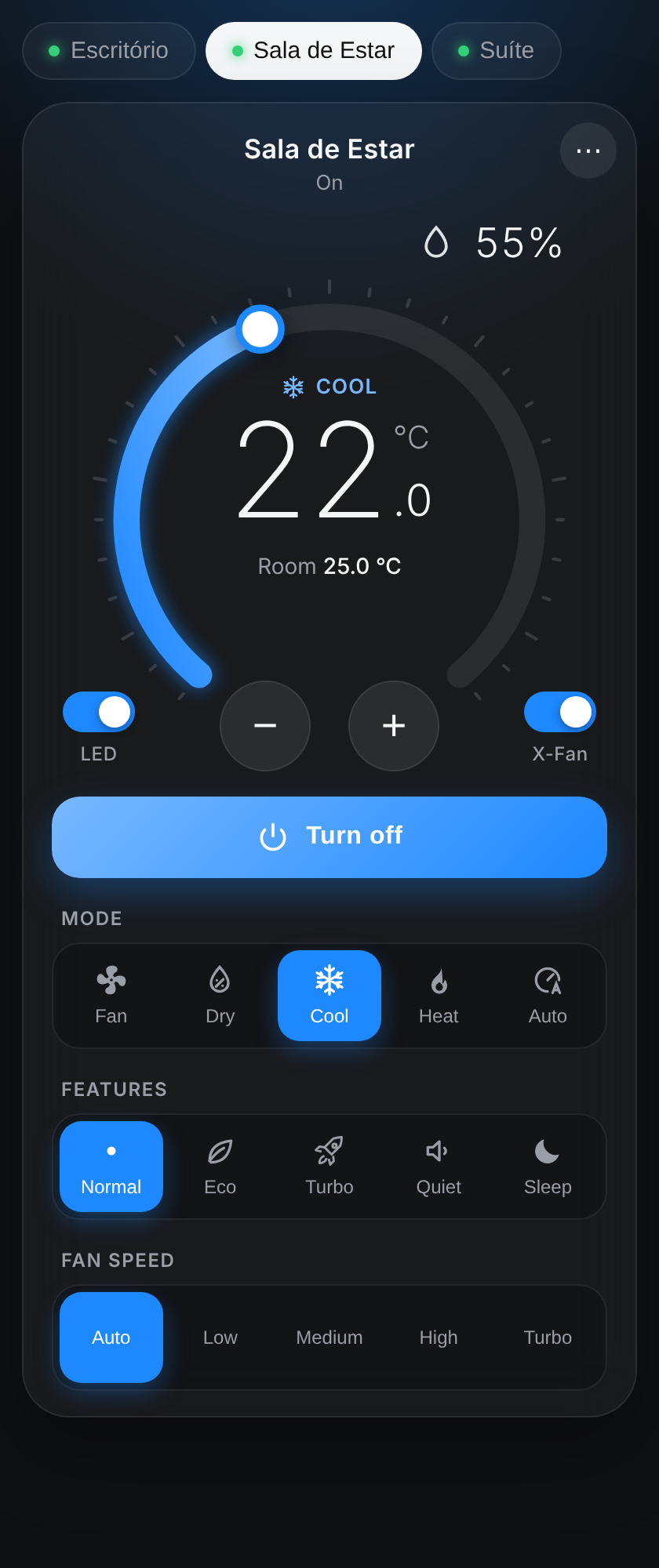
WebView interface in Navigator with the features the thermostat lacks: Eco, Turbo, Quiet, Sleep, display LED, X-Fan (coil drying) and humidity on models that measure it.
Changes made with the remote control or the app show up in Control4 on the next reading (every 10 seconds by default).
Interface and setup page in Portuguese and English.
Prerequisites
Air conditioners already set up in the Gree app (Gree+ or EWPE Smart) and connected to the customer's Wi-Fi.
Compatible brands: Gree and the brands that use the same Gree Wi-Fi module, such as some Agratto and Elgin models. In these brands the module depends on the model, so check first: if the unit pairs with the Gree+ or EWPE Smart app, it works with this driver. If it uses another app (for example Smart Life), it is not compatible.
Air conditioners and controller on the same network. Reserving each unit's IP address on the router is recommended.
ZoomDH_Universal_Thermostat.c4z driver installed in Composer (the gateway adds it to the project).
ZoomDH license key (without a key the driver runs in a 30-day trial).
Installation
Add the ZoomDH – Gree AC Wi-Fi Gateway driver to the project, in the room where the thermostats should be created.
The first time, the driver searches for the units on its own. After that, use the Discover Devices action to search again (it takes about 15 seconds).
For each air conditioner, the gateway creates a Universal Thermostat, binds it to the HVAC Thermostats connection and picks the unit.
To name the units (for example, "Living Room AC"), open the Setup Page URL address and use Rename.
To add a thermostat by hand: add the Universal Thermostat, bind its HVAC Gateway connection to the gateway's HVAC Thermostats and pick the unit in the Device property.
Refresh the Navigators to see the thermostats and the WebView interface.
If a unit is not found (for example, on a different network than the controller), enter its IP address in Device IP Addresses; the driver searches again on its own.
WebView interface
The driver shows up in Navigator as a button that opens the air conditioner interface: one tab per unit, setpoint dial, modes, fan speed, Normal/Eco/Turbo/Quiet/Sleep, display LED, X-Fan, room temperature and humidity (on models that measure it). The color follows the mode. The ⋯ menu holds the air direction and the language. The interface also opens away from home, through the Control4 app.
The default language comes from the Language property. It can be changed in the interface's ⋯ menu, and the choice is saved on that device.
Turbo, Eco and X-Fan only take effect in the modes the air conditioner itself accepts (for example, Eco and X-Fan in Cool).
Air conditioners per room
When the same driver shows up in several Navigator rooms, you can choose, for each room, which air conditioners appear in the interface and which one opens first. This is on the setup page (Setup Page URL property), in the Interface rooms box.
A room is added to the box on its own the first time the interface is opened in it. Rooms can also be added from the project's room list.
Check the air conditioners that should appear and pick the default. A room with no setup shows all of them.
If the room cannot be identified (for example, the interface opened by its direct address), all air conditioners are shown.
Properties
Property
Description
License Key
ZoomDH license key.
License Status / Driver Information
License or trial status.
Driver Name / Driver Version
Name and version of the installed driver.
Language
Default language of the WebView interface, the setup page and the Status (Português or English).
Log Level / Log Mode
Log level and destination.
Status
Search and last reading status.
Poll Interval
How often the units are read, in seconds (3 to 300, default 10).
Auto Create Devices
Yes: creates and binds a Universal Thermostat for each new unit. No: only lists the units; thermostats are added by hand.
Discovered Devices
Units found and the IP address of each one.
Device IP Addresses
Optional. IP addresses of units the search does not find on its own, separated by commas.
Web Page Port
Port of the setup page on the local network (default 8102).
Web UI URL / Setup Page URL
Interface and setup addresses, with the access key.
Actions
Action
Description
Discover Devices
Searches the network for air conditioners, updates the IP address of known units and creates any missing thermostats.
Log Raw Status
For ZoomDH support (requires ZOOMDH Debug active).
Resend Web URL
Sends the interface address to the Control4 app again. Use it if the WebView keeps loading after adding or updating the driver (and close and reopen the app).
New Web Key
Changes the access key of the setup addresses (the old addresses stop working).
Forget Devices
Clears the unit list. The thermostats stay in the project and go back to the same unit on the next search.
Connections
Connection
Use
HVAC Thermostats
Single connection for all thermostats: bind each ZoomDH – Universal Thermostat's HVAC Gateway connection to it.
Troubleshooting
No units found: check that the units show online in the Gree app and are on the same network as the controller. If they are on another network, enter their IP addresses in Device IP Addresses.
Unit found but not responding: power cycle the air conditioner at the breaker and run Discover Devices. If the unit was set up again in the app, the driver re-pairs with it on its own.
Unit offline after working: its IP address may have changed. The driver searches again on its own; to avoid it, reserve the IP address on the router.
Room temperature missing: some models do not report the room temperature over the network.
Thermostat with no modes: wait for the next reading and check that the thermostat has a unit picked in Device.
Commands ignored and license warning in the interface: the trial is over or the key is invalid. Check License Key and License Status.
WebView loading in the app: run Resend Web URL and close and reopen the app.
Licensing
ZoomDH license per controller, entered in License Key. Without a key the driver runs in a 30-day trial.
Without a valid license
Effect
Periodic reading
Stopped: the thermostats get no new state.
Commands (thermostats and WebView interface)
Ignored. The interface shows the license warning.
Unit search and setup page
Keep working.
The Universal Thermostats have no license of their own: they use the gateway's.
New version: 100% local control with old and new Gree modules, automatic search for the units with a thermostat created for each one, Navigator interface in Portuguese/English that also opens away from home and shows the air conditioners of each room.