Este driver integra aparelhos de áudio baseados no módulo LinkPlay/iEAST ao sistema Nice/ELAN, com controle em tempo real e descoberta automática na rede, sem configuração manual de IP.
A instalação é composta por três drivers:
Streaming (Bridge): instalado uma única vez. Localiza os aparelhos na rede via SSDP e instala os outros dois drivers para cada aparelho encontrado.
Device (Zona): controle de volume, mute, fonte, tonalidade e presets do aparelho.
Service: tela de reprodução, metadados, capa e navegação.
O status de reprodução (play/pause, mute, volume, faixa atual) chega em tempo real por um canal dedicado do próprio aparelho, sem consultas periódicas: a interface do ELAN reflete na hora as mudanças feitas pelo controle remoto ou pelo aplicativo oficial.
Modelos
AAT, Arylic, AudioCast, SoundSmart, WiiM e demais aparelhos baseados no módulo LinkPlay/iEAST.
Recursos suportados
Status de reprodução em tempo real (play/pause, mute, volume, metadados).
10 presets reais, lidos direto do aparelho, sempre em sincronia com o que foi salvo pelo aplicativo oficial.
Título, artista, álbum e capa para reprodução via Spotify e TuneIn.
Troca de fonte: Streaming, Bluetooth, USB, Line-In e Óptica (conforme o suporte do modelo).
Entrada virtual Bluetooth na zona: vincule uma fonte pareada por Bluetooth (uma TV, por exemplo) e o aparelho chaveia sozinho para Bluetooth quando ela é selecionada.
Repetir e Aleatório, refletindo o estado real do aparelho mesmo quando alterado por fora do ELAN.
Controle de tonalidade (graves e agudos).
Multiroom virtual: agrupar e desagrupar zonas pela interface do ELAN, refletindo também os agrupamentos feitos pelo aplicativo oficial.
Presets acionáveis por botão de keypad, pelo comando nativo Execute Favorite... do Event Map.
Ícones de Bluetooth, USB e Line-In opcionais: podem ser ocultados da tela inicial pela configuração do driver Service.
Qualquer recurso não especificamente indicado como suportado deve ser considerado sem suporte.
Pré-requisitos
Conecte o aparelho LinkPlay na mesma rede (Wi-Fi ou cabo) do controlador ELAN, seguindo o pareamento do aplicativo do fabricante.
Não é necessário IP fixo: a descoberta automática localiza o aparelho e mantém o IP atualizado mesmo que ele mude por DHCP.
Para instalações multi-zona (SoundSmart SS-MZ21 e semelhantes), veja a seção Instalação multi-zona antes de prosseguir.
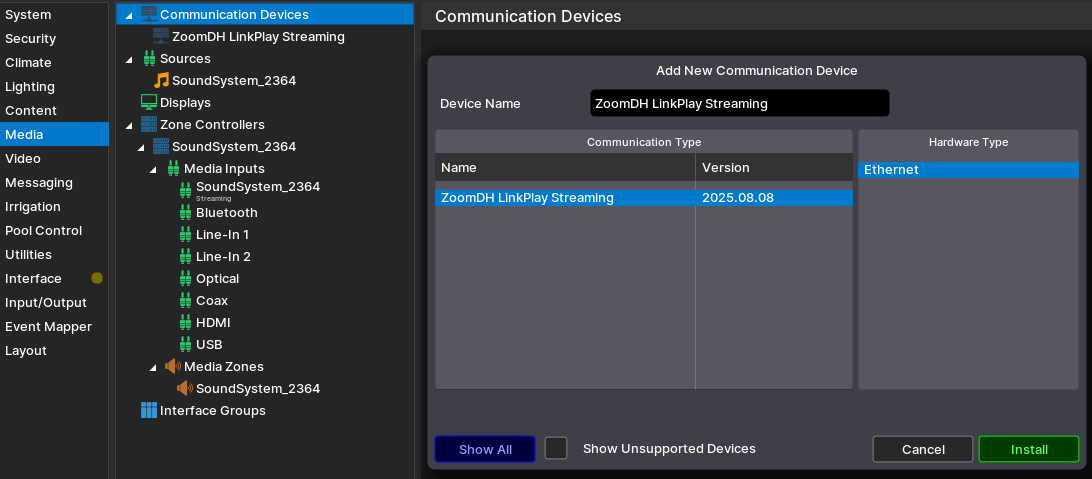
No Nice Configurator, abra a guia Media e adicione um novo Communication Device.
Use o botão Search Folder para apontar a pasta onde o driver foi salvo, selecione ZoomDH_LinkPlay_Streaming.EDRVC e instale o ZoomDH LinkPlay Streaming. Este é o único driver instalado manualmente.
Insira a chave de licença no campo License Key do ZoomDH LinkPlay Streaming, após adquiri-la.
Acione o botão de configuração Discover Devices. O driver procura os aparelhos LinkPlay na rede e instala um ZoomDH LinkPlay Device e um ZoomDH LinkPlay Service para cada um, com IP e porta preenchidos automaticamente.
A entrada de streaming de cada zona já sai vinculada à fonte de streaming. Renomeie as zonas e configure as demais entradas conforme a instalação.
Para uma fonte pareada por Bluetooth com o aparelho (uma TV, por exemplo), associe essa fonte à entrada Bluetooth da zona. Ao selecioná-la, o aparelho muda para Bluetooth; ao desligar a zona, volta para Streaming. O pareamento é feito uma única vez, no próprio aparelho. O ícone de Bluetooth da tela de mídia continua disponível e não depende dessa entrada.
Se novos aparelhos forem adicionados à rede depois, acione Discover Devices novamente.
Instalação no Nice Configurator. As entradas de cada zona ficam em Zone Controllers > Media Inputs; a lista e a ordem das entradas variam conforme a versão do driver.
Instalação multi-zona
Alguns produtos SoundSmart (por exemplo, o SS-MZ21) são três módulos LinkPlay independentes no mesmo gabinete. A descoberta automática já os identifica como três zonas separadas. A ligação entre as zonas é física: a saída de linha (Line-Out) da zona master é conectada à entrada Line-In de cada zona adicional.
No Configurator, abra a configuração de fontes/entradas da zona escrava.
Associe a entrada Line-In 1 dessa zona ao Source da zona master (o mesmo que a zona master já usa para Streaming/Spotify).
Repita para cada zona escrava, apontando para o Source da zona master correspondente.
Campos de configuração
Driver Streaming
Campo
Descrição
License Key
Chave de licença para uso do driver.
License Status
Status da licença e tempo restante de avaliação (somente leitura).
Driver Information
Mensagens de status do driver em tempo real (somente leitura).
Developer Debug
Ativa log detalhado para diagnóstico. Deixe desativado em uso normal.
Discover Devices (botão)
Procura os aparelhos LinkPlay na rede e instala os drivers Device e Service de cada um.
Driver Device
Campo
Descrição
Driver Information
Mensagens de status do driver em tempo real (somente leitura).
Developer Debug
Ativa log detalhado para diagnóstico. Deixe desativado em uso normal.
Connection Check Time (s)
Intervalo de verificação da conexão com o aparelho. Padrão: 60 segundos.
Device
Identificação do aparelho associado (somente leitura).
Driver Service
Campo
Descrição
Driver Information
Mensagens de status do driver em tempo real (somente leitura).
Developer Debug
Ativa log detalhado para diagnóstico. Deixe desativado em uso normal.
Bluetooth
Show/Hide: exibe ou oculta o ícone de Bluetooth na tela inicial de mídia. Aplicado ao clicar em Apply.
USB
Show/Hide: exibe ou oculta o ícone de USB na tela inicial de mídia. Aplicado ao clicar em Apply.
Line-In
Show/Hide: exibe ou oculta o ícone de Line-In na tela inicial de mídia. Aplicado ao clicar em Apply.
Solução de problemas
Aparelho aparece Offline: confirme que ele está na mesma rede do controlador e acione Discover Devices novamente no driver Streaming.
Presets não aparecem ou não atualizam: a lista é buscada no aparelho toda vez que a tela é aberta. Feche e abra a página de Presets para forçar uma nova busca.
Mute automático ao selecionar Line-In sem fonte conectada: comportamento normal do hardware (detecção de silêncio), não é defeito do driver.
Licenciamento
Este driver funciona por um período de avaliação. Após esse período, é necessário inserir uma chave de licença para continuar operando.
A chave é inserida no campo License Key do driver ZoomDH LinkPlay Streaming. As licenças são emitidas e vinculadas por controlador.
Entrada virtual Bluetooth na zona, para vincular uma fonte pareada por Bluetooth (uma TV, por exemplo) e chavear o aparelho automaticamente.
2026.10.12
2026-10-12
Atualização da biblioteca de licenciamento.
2026.07.20
2026-07-20
Presets acionáveis por keypad (Execute Favorite), opções Show/Hide para Bluetooth, USB e Line-In e correção do banner "Now Playing" preso em "[Agrupado]" após desagrupar.
2026.07.10
2026-07-10
Troca de fonte com ícones dedicados, Repetir/Aleatório e multiroom virtual completo (agrupar e desagrupar).
2026.01.10
2026-01-10
Nova versão com presets reais lidos direto do aparelho.
This driver integrates audio devices based on the LinkPlay/iEAST module with the Nice/ELAN system, with real-time control and automatic network discovery, with no manual IP configuration.
The installation uses three drivers:
Streaming (Bridge): installed only once. It finds the devices on the network through SSDP and installs the other two drivers for each device found.
Device (Zone): volume, mute, source, tone and preset control of the device.
Service: now playing screen, metadata, cover art and browsing.
The playback status (play/pause, mute, volume, current track) arrives in real time through a dedicated channel of the device itself, with no periodic polling: the ELAN interface immediately reflects changes made with the remote control or the official app.
Models
AAT, Arylic, AudioCast, SoundSmart, WiiM and other devices based on the LinkPlay/iEAST module.
Supported features
Real-time playback status (play/pause, mute, volume, metadata).
10 real presets, read directly from the device, always in sync with what was saved in the official app.
Title, artist, album and cover art for Spotify and TuneIn playback.
Source selection: Streaming, Bluetooth, USB, Line-In and Optical (depending on the model).
Virtual Bluetooth input on the zone: bind a source paired over Bluetooth (a TV, for example) and the device switches to Bluetooth by itself when that source is selected.
Repeat and Shuffle, reflecting the real state of the device even when changed outside ELAN.
Tone control (bass and treble).
Virtual multiroom: group and ungroup zones from the ELAN interface, also reflecting groups made in the official app.
Presets can be triggered by a keypad button, with the native Execute Favorite... command of the Event Map.
Optional Bluetooth, USB and Line-In icons: they can be hidden from the home screen in the Service driver configuration.
Any feature not specifically listed as supported should be considered unsupported.
Prerequisites
Connect the LinkPlay device to the same network (Wi-Fi or cable) as the ELAN controller, following the pairing process of the manufacturer's app.
No fixed IP is needed: automatic discovery finds the device and keeps its IP up to date even if it changes through DHCP.
For multi-zone installations (SoundSmart SS-MZ21 and similar), see the Multi-zone installation section before going on.
In the Nice Configurator, open the Media tab and add a new Communication Device.
Use the Search Folder button to point to the folder where the driver was saved, select ZoomDH_LinkPlay_Streaming.EDRVC and install ZoomDH LinkPlay Streaming. This is the only driver installed manually.
Enter the license key in the License Key field of ZoomDH LinkPlay Streaming, after purchasing it.
Press the Discover Devices configuration button. The driver looks for LinkPlay devices on the network and installs one ZoomDH LinkPlay Device and one ZoomDH LinkPlay Service for each, with IP and port filled in automatically.
The streaming input of each zone is already bound to the streaming source. Rename the zones and configure the other inputs as the installation requires.
For a source paired with the device over Bluetooth (a TV, for example), assign that source to the Bluetooth input of the zone. Selecting it switches the device to Bluetooth; turning the zone off switches it back to Streaming. Pairing is done once, on the device itself. The Bluetooth icon on the media screen remains available and does not depend on this input.
If new devices are added to the network later, press Discover Devices again.
Installation in the Nice Configurator. The inputs of each zone are under Zone Controllers > Media Inputs; the list and order of inputs vary with the driver version.
Multi-zone installation
Some SoundSmart products (for example, the SS-MZ21) are three independent LinkPlay modules in the same enclosure. Automatic discovery already identifies them as three separate zones. The link between the zones is physical: the line output (Line-Out) of the master zone is wired to the Line-In input of each additional zone.
In the Configurator, open the source/input configuration of the slave zone.
Assign the Line-In 1 input of that zone to the Source of the master zone (the same one the master zone already uses for Streaming/Spotify).
Repeat for each slave zone, pointing to the Source of the corresponding master zone.
Configuration fields
Streaming driver
Field
Description
License Key
License key for the driver.
License Status
License status and remaining evaluation time (read only).
Driver Information
Driver status messages in real time (read only).
Developer Debug
Enables detailed logging for diagnostics. Keep it disabled in normal use.
Discover Devices (button)
Looks for LinkPlay devices on the network and installs the Device and Service drivers for each one.
Device driver
Field
Description
Driver Information
Driver status messages in real time (read only).
Developer Debug
Enables detailed logging for diagnostics. Keep it disabled in normal use.
Connection Check Time (s)
Interval for checking the connection with the device. Default: 60 seconds.
Device
Identification of the associated device (read only).
Service driver
Field
Description
Driver Information
Driver status messages in real time (read only).
Developer Debug
Enables detailed logging for diagnostics. Keep it disabled in normal use.
Bluetooth
Show/Hide: shows or hides the Bluetooth icon on the media home screen. Applied when you click Apply.
USB
Show/Hide: shows or hides the USB icon on the media home screen. Applied when you click Apply.
Line-In
Show/Hide: shows or hides the Line-In icon on the media home screen. Applied when you click Apply.
Troubleshooting
Device shows Offline: make sure it is on the same network as the controller and press Discover Devices again in the Streaming driver.
Presets do not show or do not update: the list is fetched from the device every time the screen is opened. Close and reopen the Presets page to force a new fetch.
Automatic mute when selecting Line-In with no source connected: normal hardware behavior (silence detection), not a driver fault.
Licensing
This driver works for an evaluation period. After that period, a license key is required to keep it running.
The key is entered in the License Key field of the ZoomDH LinkPlay Streaming driver. Licenses are issued and bound per controller.
Virtual Bluetooth input on the zone, to bind a source paired over Bluetooth (a TV, for example) and switch the device automatically.
2026.10.12
2026-10-12
Licensing library update.
2026.07.20
2026-07-20
Presets can be triggered by keypad (Execute Favorite), Show/Hide options for Bluetooth, USB and Line-In, and fix for the "Now Playing" banner stuck on "[Agrupado]" after ungrouping.
2026.07.10
2026-07-10
Source selection with dedicated icons, Repeat/Shuffle and full virtual multiroom (group and ungroup).
2026.01.10
2026-01-10
New version with real presets read directly from the device.