
ZoomDH – Shelly Bridge v2026.10.31

Visão geral
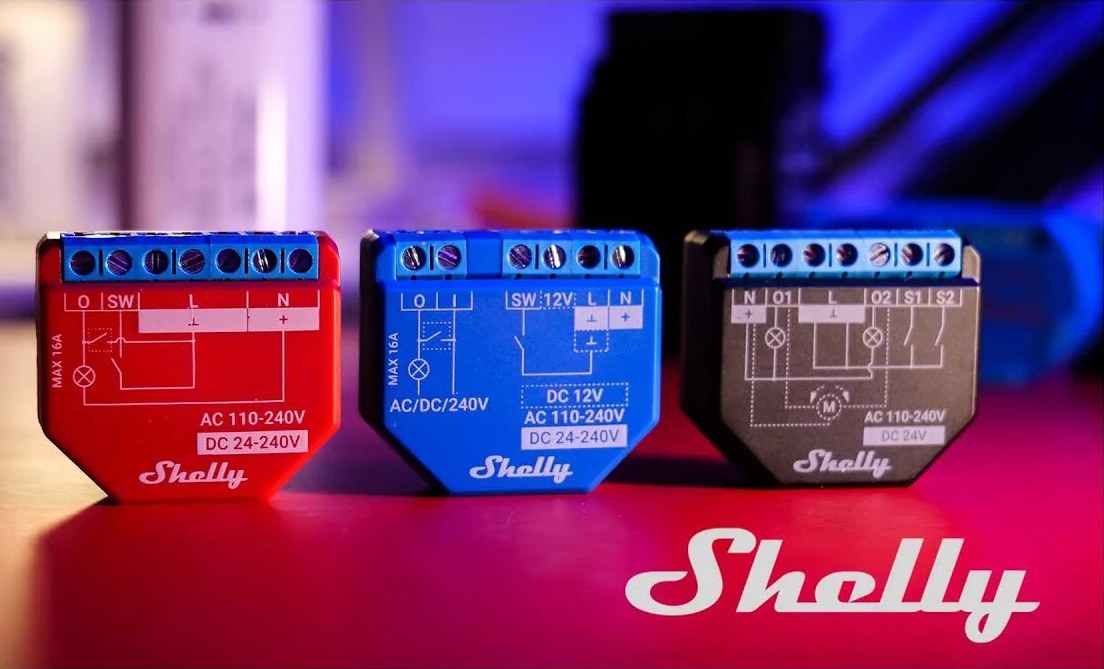

Este driver integra ao Nice/ELAN os relés, dimmers, módulos de cortina e medidores de energia Shelly das linhas Plus, Pro, Mini, Gen3 e Gen4. A comunicação é direta com cada aparelho na rede local, sem nuvem: o driver encontra os Shelly com um clique e recebe na hora tudo o que muda, inclusive o que é feito pelo app ou pelo interruptor da parede.
São quatro drivers, instalados juntos:
- ZoomDH Shelly Bridge (guia Communication Devices): licença, busca dos aparelhos na rede, conexão com cada um e comandos.
- ZoomDH Shelly Light (instalado pelo driver principal, guia Lighting): relés, dimmers, cortinas e as entradas dos Shelly como botões.
- ZoomDH Shelly Sensors (instalado pelo driver principal, guia Input/Output): estado das entradas, temperatura, umidade e entrada analógica.
- ZoomDH Shelly Energy (instalado pelo botão Refresh Status, guia Utilities): potência e energia de cada canal com medição, com medidor e gráfico de histórico.
Recursos suportados
- Busca dos Shelly na rede do controlador com um clique. Aparelhos em outra rede podem ser incluídos pelo IP.
- Relés como On/Off, um dispositivo por canal.
- Dimmers e controladores de LED (Dimmer, 0-10V, RGBW em modo branco, CCT) com liga/desliga e nível de 1 a 100%.
- Cortinas e persianas (Plus/Pro 2PM em modo cortina, Pro Dual Cover) com abrir, fechar, parar e posição em %, quando a cortina está calibrada no Shelly.
- Entradas dos Shelly como botões virtuais (apertar e soltar) para o Event Mapper, tanto em modo interruptor quanto em modo pulsador.
- Medição de energia na guia Utilities: potência (W) e energia acumulada (kWh) de cada canal com medição e dos medidores PM Mini, Pro EM e Pro 3EM, com medidor e gráfico de histórico.
- Sensores do Add-on: temperatura e umidade como entradas numéricas.
- Tempo real: o que muda no Shelly (app, interruptor, cena) chega ao ELAN na hora.
- Senha dos Shelly protegidos (autenticação digest).
- Status da conexão no ELAN e eventos Device Online / Device Offline.
Cor de lâmpadas RGB, aparelhos a bateria (H&T, Door/Window, BLU) e os Shelly da primeira geração (Gen1) não são suportados nesta versão. Qualquer recurso não indicado como suportado deve ser considerado sem suporte.
Modelos
| Tipo | Exemplos |
|---|---|
| Relés | Plus 1, Plus 1PM, Plus 2PM, Pro 1, Pro 1PM, Pro 2, Pro 2PM, Pro 3, Pro 4PM, 1 Mini, 1PM Mini, 1 Gen3, 1PM Gen3, 2PM Gen3, Plus Plug |
| Dimmers e LED | Plus Dimmer, Plus 0-10V Dimmer, Dimmer Gen3, Pro Dimmer 1PM/2PM, Plus RGBW PM (modo branco) |
| Cortinas | Plus 2PM e 2PM Gen3 em modo cortina, Pro 2PM em modo cortina, Pro Dual Cover PM |
| Entradas | Plus i4, i4 Gen3 e as entradas de todos os modelos acima |
| Medidores | PM Mini, Pro EM, Pro 3EM |
Pré-requisitos
- Shelly Gen2, Gen3 ou Gen4 configurados e funcionando no Wi-Fi (ou cabo, nos Pro), com firmware atualizado.
- IP fixo ou reserva de DHCP para cada Shelly (recomendado). Se o IP mudar, clique em Discover Devices para o driver achar o aparelho de novo.
- Shelly na mesma rede do controlador ELAN. Para outra rede (VLAN), o controlador precisa alcançar o IP do Shelly pela porta 80.
- Se os Shelly tiverem senha (Settings > Authentication), use a mesma senha em todos.
Instalação
- Verifique a versão mais recente do driver em www.zoomdigitalhome.com.br/drivers.
- No Nice Configurator, abra a guia Communication Devices, adicione um dispositivo e clique em Import..., apontando para ZoomDH_Shelly.edrvc. Se o driver não aparecer na lista, clique em Show All.
- Instale o ZoomDH Shelly Bridge. Ele instala sozinho os drivers Shelly Light (Lighting) e Shelly Sensors (Input/Output). Se eles não aparecerem, clique em Refresh Status.
- Para ter a medição de energia, clique em Refresh Status: ele instala o Shelly Energy na guia Utilities.
- Insira a chave de licença em License Key.
- Se os Shelly tiverem senha, digite a senha no campo Password (o usuário é sempre admin no Shelly; o campo User Name não é usado).
- Clique em Discover Devices para o driver procurar os Shelly na rede. Repita para incluir aparelhos novos depois. Para Shelly em outra rede, digite os IPs em Shelly IPs.
- Na guia Lighting, os relés, dimmers, cortinas e botões aparecem no driver Shelly Light, com o nome dado no app Shelly. Renomeie e ligue-os aos controles e cenários do ELAN normalmente.
- Na guia Input/Output, abra o Shelly Sensors: as páginas Sensors (Sensor 01 a 32), Valores 1 (Valor 01 a 32) e Valores 2 (Valor 33 a 64) mostram o que ficou em cada entrada.
- Na guia Utilities, o Shelly Energy mostra a potência e a energia de cada canal com medição. As medições aparecem cerca de um minuto depois da busca.
Campos de configuração
ZoomDH Shelly Bridge
| Campo | Descrição |
|---|---|
| License Key | Chave de licença para uso do driver. |
| License Status | Status da licença e tempo restante de avaliação (somente leitura). |
| Driver Information | Mensagens de status do driver, como o resultado da busca (somente leitura). |
| Developer Debug | Ativa log detalhado da comunicação com cada Shelly. Deixe desativado em uso normal. |
| Shelly IPs | Opcional. IPs de Shelly fora da rede do controlador, separados por vírgula (ex.: 10.0.5.7, 10.0.5.8). Eles são procurados ao clicar em Discover Devices. |
| Devices | Resumo, por exemplo 8 Shelly, 8 conectados (somente leitura). |
| Password | Senha dos Shelly protegidos. Deixe vazio se eles não têm senha. |
| Discover Devices | Botão: procura Shelly na rede do controlador e nos IPs digitados. Os já existentes no ELAN são mantidos. |
| Refresh Status | Botão: instala o Shelly Energy, reinstala Shelly Light e Shelly Sensors se tiverem sido removidos, reconecta quem caiu e lê o estado de todos agora. |
Endereço dos dispositivos (Light)
Cada dispositivo de iluminação usa dois campos de endereço, preenchidos pela busca: Shelly ID (ex.: shellyplus1pm-a8032ab12345) e Component (o canal: switch:0, light:0, cover:0, input:0...).
Entradas e medições
Botões (Shelly Light)
Cada entrada do Shelly vira um botão virtual no Shelly Light, para usar no Event Mapper:
- Entrada em modo interruptor: ligar o interruptor aperta o botão e desligar solta.
- Entrada em modo pulsador (button): apertar e soltar o pulsador apertam e soltam o botão.
Shelly Sensors
| Entradas | Tipo | Conteúdo |
|---|---|---|
| Sensor 01 a 32 | Estado (0/1) | Entradas do Shelly em modo interruptor (1 = ligada). |
| Valor 01 a 64 | Numérica | Temperatura (°C), umidade (%) e entrada analógica (%), em números inteiros. |
As entradas são distribuídas na busca e não mudam depois. As páginas Sensors, Valores 1 e Valores 2 mostram o nome do aparelho e a grandeza de cada entrada; use esses nomes para renomear as entradas no Configurator e no Event Mapper.
Shelly Energy
Cada canal com medição vira duas entradas na guia Utilities, com o nome do canal: Potência (W) e Energia (mostrada em kWh). Elas têm medidor e gráfico de histórico no Configurator e no app ELAN.
Funcionamento e limites
- O driver mantém uma conexão permanente com cada Shelly e confere o estado de todos a cada minuto. Se um aparelho cair, ele reconecta sozinho.
- Funciona sem internet: a comunicação é toda na rede local. A nuvem Shelly e o app continuam funcionando em paralelo.
- A busca percorre os 254 endereços da rede do controlador e leva cerca de 30 segundos.
- Posição de cortina só funciona com a cortina calibrada no app Shelly. Sem calibração, níveis acima de 50% abrem e os demais fecham.
- O driver Shelly Sensors tem 32 entradas de estado e 64 numéricas. Medições que passarem disso não aparecem.
Solução de problemas
| Mensagem | O que fazer |
|---|---|
| Nenhum Shelly encontrado | Confira se os Shelly estão na mesma rede do controlador. Para outra rede, digite os IPs em Shelly IPs. |
| Shelly com senha: preencha o campo Password do driver | Digite a senha dos Shelly no campo Password e clique em Refresh Status. |
| senha do Shelly incorreta | Confira a senha. Todos os Shelly precisam da mesma senha. |
| ... e' Gen1 (nao suportado por este driver) | O aparelho é da primeira geração. Troque por um modelo Plus, Pro ou Gen3/Gen4. |
| sem conexao / sem resposta no IP | Confira se o Shelly está ligado e na rede. O driver tenta reconectar sozinho; se o IP mudou, clique em Discover Devices. |
- Dispositivo não aparece: confira no app Shelly se o aparelho está online e clique em Discover Devices.
- Comandos não funcionam: confira o License Status e o resumo em Devices.
- Diagnóstico: ative o Developer Debug para ver no log cada mensagem trocada com os Shelly.
Licenciamento
- Este driver funciona por um período de avaliação de 7 dias. Após esse período, é necessário inserir uma chave de licença para continuar operando.
- A chave é inserida no campo License Key do ZoomDH Shelly Bridge e vale para os três drivers. As licenças são emitidas e vinculadas por controlador ELAN.
- Sem licença válida, o driver não envia comandos nem atualiza o estado dos dispositivos.
- Licenças podem ser obtidas pelo e-mail drivers@zoomdigitalhome.com.br.
Suporte e Atualizações
- Atualizações disponíveis são exibidas em License Status.
- Download de drivers: www.zoomdigitalhome.com.br/drivers
- Suporte: drivers@zoomdigitalhome.com.br
Release Notes
| Versão | Data | Descrição |
|---|---|---|
| 2026.10.31 | 2026-10-31 | Versão inicial. |