ZoomDH – Tuya Smart Life v2026.11.19

Visão geral
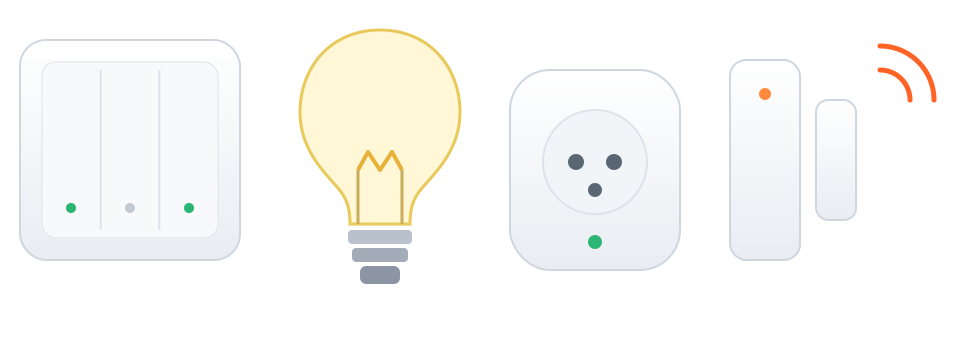
Este driver integra ao Nice/ELAN os dispositivos Wi-Fi e Zigbee dos apps Tuya Smart e Smart Life: interruptores, tomadas, relés, disjuntores, dimmers, lâmpadas, cortinas, cenas e sensores. A comunicação é feita pela nuvem da Tuya com a própria conta do app: o instalador digita o Código do Usuário e lê um QR Code com o celular. Não é preciso conta de desenvolvedor na Tuya nem configurar IP ou chave local de cada dispositivo.
São três drivers, instalados juntos:
- ZoomDH Tuya Smart Life (Bridge, guia Communication Devices): licença, vínculo com a conta Tuya, descoberta, atualização em tempo real e comandos.
- ZoomDH Tuya Smart Life Light (instalado pela ponte, guia Lighting): interruptores, tomadas, dimmers, lâmpadas, cortinas e cenas.
- ZoomDH Tuya Smart Life Sensors (instalado pela ponte, guia Input/Output): sensores como entradas.
Recursos suportados
- Login por QR Code na conta Smart Life / Tuya Smart do cliente. O acesso fica gravado no controlador e é renovado sozinho.
- Descoberta automática de todos os dispositivos e cenas das casas da conta.
- Interruptores, tomadas, relés e disjuntores como On/Off, um dispositivo por tecla ou canal (switch_1, switch_2...).
- Lâmpadas e dimmers com liga/desliga e nível de 0 a 100%, na faixa de brilho de cada produto.
- Cortinas e persianas com abrir, fechar, parar e posição (quando o motor informa porcentagem).
- Cenas (tap-to-run) do app como cenas no ELAN.
- Sensores: porta/janela, movimento, presença, vazamento, fumaça, gás, CO e vibração como entradas de estado; temperatura, umidade e bateria como entradas numéricas.
- Tempo real: o que é feito pelo app ou no próprio dispositivo chega ao ELAN na hora (MQTT), com uma leitura periódica de segurança.
- Status da conexão no ELAN (verde/vermelho) e no campo Status (conta e MQTT).
Cor de lâmpadas RGB, temperatura de cor, ar-condicionado, ventiladores e fechaduras ainda não são suportados nesta versão. Esses dispositivos podem ser acionados por cenas criadas no app. Qualquer recurso não indicado como suportado deve ser considerado sem suporte.
Pré-requisitos
- Dispositivos já cadastrados e funcionando no app Smart Life ou Tuya Smart.
- O celular com o app logado na conta do cliente, para ler o QR Code na instalação.
- Controlador ELAN com acesso à internet e com data e hora corretas (a integração depende da nuvem da Tuya).
Vincular a conta (QR Code)
- No app Smart Life ou Tuya Smart, logado na conta do cliente, toque em Eu e no ícone de Configurações.
- Entre em Conta e Segurança e copie o Código do Usuário (User Code).
- No driver, digite o código no campo User Code (Smart Life) e clique no botão Generate QR Code.
- O campo Status passa a mostrar o link do QR Code. Copie o endereço e abra num navegador: a página mostra o QR Code. O link também fica no log, na linha
[Tuya] QR Code:. - No app, use o leitor de QR (ícone no canto superior da tela Eu ou + > Escanear), leia o QR Code e confirme a autorização.
- Em alguns segundos o Status passa para Autenticado e o driver procura os dispositivos.
Instalação
- Verifique a versão mais recente do driver em www.zoomdigitalhome.com.br/drivers.
- No Nice Configurator, abra a guia Communication Devices, adicione um dispositivo e clique em Import..., apontando para ZoomDH_Tuya_Smart_Life.edrvc. Se o driver não aparecer na lista, clique em Show All.
- Instale o ZoomDH Tuya Smart Life. A ponte instala sozinha os drivers Tuya Smart Life Light (Lighting) e Tuya Smart Life Sensors (Input/Output). Se eles não aparecerem, clique em Discover Devices.
- Insira a chave de licença em License Key.
- Vincule a conta do cliente pelo QR Code (seção anterior). Na primeira conexão o driver procura os dispositivos sozinho; para atualizar a lista depois de incluir aparelhos no app, clique em Discover Devices.
- Na guia Lighting, os dispositivos aparecem no driver Tuya Smart Life Light. Renomeie e ligue-os aos controles e cenários do ELAN normalmente.
- Na guia Input/Output, abra o Tuya Smart Life Sensors: as páginas Sensors e Valores mostram qual sensor ficou em cada entrada.
Campos de configuração
ZoomDH Tuya Smart Life (ponte)
| Campo | Descrição |
|---|---|
| License Key | Chave de licença para uso do driver. |
| License Status | Status da licença e tempo restante de avaliação (somente leitura). |
| Driver Information | Mensagens de status do driver (somente leitura). |
| Developer Debug | Ativa log detalhado de cada chamada à nuvem e das mensagens MQTT. Deixe desativado em uso normal. |
| User Code (Smart Life) | Código do Usuário (User Code) da conta do app. É o único dado digitado para o login. Apagar o código desconecta a conta deste controlador. |
| Status | Durante o login, o link do QR Code. Depois, a conta, a conexão em tempo real e o resumo dos dispositivos, por exemplo Autenticado | MQTT: Conectado | 10 na conta (10 online), 14 no ELAN, ou o último erro (somente leitura). |
| Generate QR Code | Botão: inicia o login com o Código do Usuário informado. |
| Discover Devices | Botão: procura dispositivos e cenas novos, lê o estado de todos e reconecta o tempo real. Os já existentes no ELAN são mantidos. Também reinstala os drivers Light e Sensors se eles tiverem sido removidos. |
Endereço dos dispositivos (Light)
Cada dispositivo de iluminação usa dois campos de endereço, preenchidos pela descoberta: Device ID (ID do aparelho na Tuya) e Channel (o canal, por exemplo switch_1, switch_led ou control). As cenas usam Scene ID e Home ID.
Sensores
| Entradas | Tipo | Sensores |
|---|---|---|
| Sensor 01 a 32 | Estado (0/1) | Porta/janela (1 = aberta), movimento, presença, vazamento, fumaça, gás, CO, SOS e vibração (1 = ativo). |
| Valor 01 a 24 | Numérica | Temperatura (°C, inteiro), umidade (%) e bateria (%). |
As entradas são distribuídas na descoberta e não mudam depois. As páginas Sensors (entradas de estado) e Valores (numéricas) do driver Tuya Smart Life Sensors mostram o nome do dispositivo e a grandeza de cada entrada; use esses nomes para renomear as entradas no Configurator e no Event Mapper.
Funcionamento e limites
- O driver usa o mesmo acesso por QR Code que a Tuya oferece para integrações de automação residencial com a conta do app. Não há cota de chamadas nem plano para renovar.
- As mudanças chegam por uma conexão permanente (MQTT) com a nuvem da Tuya. Se ela cair, o driver reconecta sozinho e a leitura periódica (a cada 2 minutos) mantém o estado em dia enquanto isso.
- Sem internet ou com a nuvem da Tuya fora do ar, os dispositivos não respondem pelo ELAN.
- A Tuya pode alterar esse acesso sem aviso. Se o login ou a conexão deixarem de funcionar, verifique se há versão nova do driver.
Solução de problemas
| Mensagem em Status | O que fazer |
|---|---|
| Erro: User Code obrigatorio | Preencha o User Code (Smart Life) e clique em Generate QR Code de novo. |
| Falha ao pedir o QR Code | Confira o Código do Usuário (copie de novo do app) e a internet do controlador. |
| QR Code expirou | O QR não foi lido em 5 minutos. Clique em Generate QR Code de novo. |
| Nao autenticado | Faça o login pelo QR Code (seção Vincular a conta). |
| Falha na comunicacao: erro 1010 / 1011 | O acesso à conta expirou ou foi revogado. Gere um novo QR Code. |
| MQTT: Desconectado | Confira a internet do controlador e clique em Discover Devices para reconectar. Enquanto isso, o estado é atualizado pela leitura periódica. |
| sem resposta da nuvem Tuya | Confira a internet e a data/hora do controlador. |
- Dispositivo não aparece: confira se ele está online no app e clique em Discover Devices. Tipos ainda não suportados entram na contagem de Nao Suportados.
- Comandos não funcionam: confira o License Status e se o dispositivo está online no app.
- Diagnóstico: ative o Developer Debug para ver cada chamada à nuvem e cada mensagem MQTT no log.
Licenciamento
- Este driver funciona por um período de avaliação de 7 dias. Após esse período, é necessário inserir uma chave de licença para continuar operando.
- A chave é inserida no campo License Key da ponte e vale para os três drivers. As licenças são emitidas e vinculadas por controlador ELAN.
- Sem licença válida, o driver não envia comandos nem atualiza o estado dos dispositivos.
- A conta do app Smart Life / Tuya Smart é do cliente e não faz parte da licença do driver.
- Licenças podem ser obtidas pelo e-mail drivers@zoomdigitalhome.com.br.
- Uma vez por dia, também durante o teste, o driver informa ao servidor de licenças dados técnicos da instalação (endereço de rede e fuso horário do controlador, versão do driver e situação da licença). Nenhum dado pessoal é enviado. Quando há versão nova do driver, ela aparece em License Status, com o link da página do driver no site.
Suporte e Atualizações
- Atualizações disponíveis são exibidas em License Status.
- Download de drivers: www.zoomdigitalhome.com.br/drivers
- Suporte: drivers@zoomdigitalhome.com.br
Release Notes
| Versão | Data | Descrição |
|---|---|---|
| 2026.11.19 | 2026-11-19 | Versão inicial. |