ZoomDH – Tuya Termostatos WiFi v2026.11.03

Visão geral
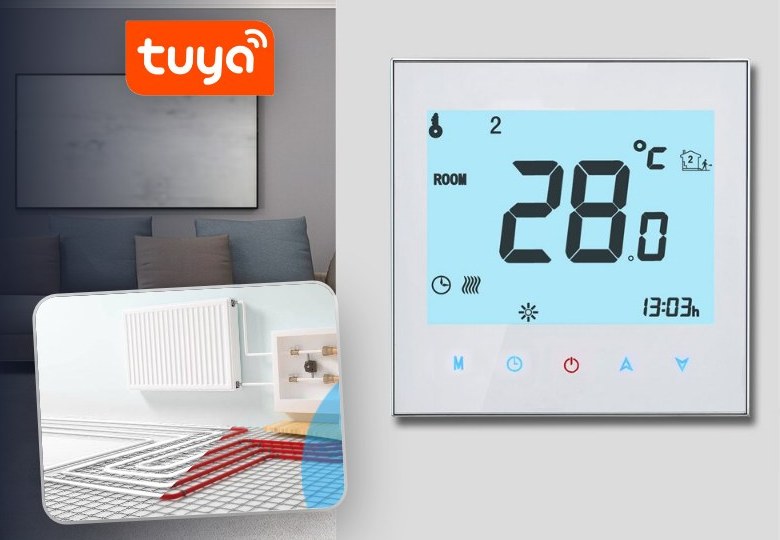
Este driver integra ao Nice/ELAN os termostatos Wi-Fi de piso aquecido (e de caldeira) cadastrados nos apps Smart Life ou Tuya Smart, de qualquer marca que use a plataforma Tuya. Cada termostato aparece como um termostato nativo do ELAN, com liga/desliga, temperatura desejada, temperatura ambiente e indicação de aquecimento.
A comunicação é feita pela nuvem da Tuya com a própria conta do app: o instalador digita o Código do Usuário e lê um QR Code com o celular. Não é preciso conta de desenvolvedor na Tuya nem configurar IP ou chave local de cada termostato.
É um driver só, ZoomDH Tuya Floor Heating Thermostat, instalado na guia Climate. Ele cria um termostato no ELAN para cada termostato da conta.
Recursos suportados
- Login por QR Code na conta Smart Life / Tuya Smart do cliente. O acesso fica gravado no controlador e é renovado sozinho.
- Busca automática dos termostatos da conta, com o termostato de cada um criado e nomeado no ELAN.
- Modos Off e Heat (desliga e liga o termostato).
- Temperatura desejada de 5 a 40 °C, dentro da faixa de cada aparelho.
- Temperatura ambiente e indicação de aquecendo (relé ligado), quando o aparelho informa.
- Tempo real: o que é feito no app ou no próprio termostato chega ao ELAN na hora, com uma leitura de segurança a cada 2 minutos.
- Comandos All On e All Off para cenas e Event Mapper.
- Termostato on-line/off-line no status de cada termostato do ELAN.
Programação horária do próprio termostato, bloqueio infantil, calibração e modo antecongelamento continuam sendo ajustados pelo app. Ar-condicionado não faz parte deste driver. Qualquer recurso não indicado como suportado deve ser considerado sem suporte.
Pré-requisitos
- Termostatos já cadastrados e funcionando no app Smart Life ou Tuya Smart.
- O celular com o app logado na conta do cliente, para ler o QR Code na instalação.
- Controlador ELAN com acesso à internet e com data e hora corretas (a integração depende da nuvem da Tuya).
Instalação
- Verifique a versão mais recente do driver em www.zoomdigitalhome.com.br/drivers.
- No Nice Configurator, abra a guia Climate, adicione um dispositivo e clique em Import..., apontando para ZoomDH_Tuya_Thermostat.edrvc. Se o driver não aparecer na lista, clique em Show All.
- Insira a chave de licença em License Key.
- Vincule a conta do cliente pelo QR Code (próxima seção).
- Clique em Discover Thermostats. Cada termostato da conta é criado no ELAN com o nome que tem no app. Renomeie e coloque nos ambientes normalmente.
- Para incluir termostatos novos depois, cadastre-os no app e clique em Discover Thermostats de novo. Os que já existem no ELAN são mantidos.
Vincular a conta (QR Code)
- No app Smart Life ou Tuya Smart, logado na conta do cliente, toque em Eu e no ícone de Configurações.
- Entre em Conta e Segurança e copie o Código do Usuário (User Code).
- No driver, digite o código em Tuya User Code e clique no botão Generate QR Code.
- O campo Tuya Status mostra Abra no navegador e leia com o app: seguido de um endereço. Copie o endereço e abra num navegador: a página mostra o QR Code. O link também fica no log, na linha
[Tuya] QR Code:. - No app, use o leitor de QR (ícone no canto superior da tela Eu ou + > Escanear), leia o QR Code e confirme a autorização.
- Em alguns segundos o Tuya Status passa para Auth: Autenticado.
Campos de configuração
| Campo | Descrição |
|---|---|
| License Key | Chave de licença para uso do driver. |
| License Status | Status da licença e tempo restante de avaliação (somente leitura). |
| Driver Information | Mensagens de status do driver (somente leitura). |
| Developer Debug | Ativa log detalhado de cada chamada à nuvem e das mensagens em tempo real. Deixe desativado em uso normal. |
| Tuya User Code | Código do Usuário (User Code) da conta do app. É o único dado digitado para o login. |
| Tuya Status | Link do QR Code durante o login; depois, o estado da conexão, por exemplo Auth: Autenticado | MQTT: Conectado, ou o último erro (somente leitura). |
| Generate QR Code | Botão: inicia o login com o Tuya User Code informado. |
| Discover Thermostats | Botão: procura os termostatos da conta e cria os que ainda não estão no ELAN. |
Funcionamento e limites
- O driver usa o mesmo acesso por QR Code que a Tuya oferece para integrações de automação residencial com a conta do app. Não há cota de chamadas nem plano para renovar.
- As mudanças chegam por uma conexão permanente com a nuvem da Tuya. Se ela cair, o driver reconecta sozinho e a leitura a cada 2 minutos mantém o estado em dia enquanto isso.
- Sem internet ou com a nuvem da Tuya fora do ar, os termostatos não respondem pelo ELAN (continuam funcionando no próprio aparelho).
- Ao ajustar a temperatura várias vezes seguidas, o driver espera 1,5 s e manda só o último valor ao termostato.
- A Tuya pode alterar esse acesso sem aviso. Se o login ou a conexão deixarem de funcionar, verifique se há versão nova do driver.
Solução de problemas
| Mensagem | O que fazer |
|---|---|
| Erro: preencha Tuya User Code | Preencha o Tuya User Code e clique em Generate QR Code de novo. |
| Falha ao pedir o QR Code | Confira o Código do Usuário (copie de novo do app) e a internet do controlador. |
| QR Code expirou | O QR não foi lido em 5 minutos. Clique em Generate QR Code de novo. |
| Nao autenticado | Faça o login pelo QR Code (seção Vincular a conta). |
| Falha na comunicacao: erro 1010 / 1011 | O acesso à conta expirou ou foi revogado. Gere um novo QR Code. |
| Termostato vermelho: Offline | O termostato está sem Wi-Fi. Confira no app. |
| Termostato vermelho: Device ID nao encontrado na conta | O Address não é de um termostato desta conta. Apague o termostato e use Discover Thermostats. |
- Termostato não aparece: confira se ele está on-line no app e clique em Discover Thermostats.
- Comandos não funcionam: confira o License Status e se o termostato está on-line no app.
- Diagnóstico: ative o Developer Debug para ver cada chamada à nuvem e cada mensagem no log.
Licenciamento
- Este driver funciona por um período de avaliação de 7 dias. Após esse período, é necessário inserir uma chave de licença para continuar operando.
- As licenças são emitidas e vinculadas por controlador ELAN e valem para todos os termostatos do driver.
- Sem licença válida, o driver não envia comandos nem atualiza o estado dos termostatos.
- A conta do app Smart Life / Tuya Smart é do cliente e não faz parte da licença do driver.
- Licenças podem ser obtidas pelo e-mail drivers@zoomdigitalhome.com.br.
Suporte e Atualizações
- Atualizações disponíveis são exibidas em License Status.
- Download de drivers: www.zoomdigitalhome.com.br/drivers
- Suporte: drivers@zoomdigitalhome.com.br
Release Notes
| Versão | Data | Descrição |
|---|---|---|
| 2026.11.03 | 2026-11-03 | Versão inicial. |