ZoomDH – Midea VRF Controller v20261023
Overview
Driver that integrates the Midea VRF air conditioning system with Control4 through the Midea XYE bus (RS-485), using an RS-232/RS-485 converter on the controller serial port. No additional Midea device is needed.
The package uses two drivers together:
- ZoomDH – Midea VRF Controller: talks to the system, finds the indoor units and shows the Navigator interface (this driver).
- ZoomDH Universal HVAC Indoor Unit: one Control4 thermostat per indoor unit, with presets and schedules.
Features
- Up to 64 indoor units, with control and status feedback.
- Fan, Dry, Cool, Heat and Auto modes; Auto fan plus 7 speeds; air direction Swing or Fixed.
- Navigator interface with all indoor units: mode, setpoint, fan and room temperature, with the same look as the ZoomDH Wi-Fi air conditioner drivers.
- Per room choice of which indoor units show up in the interface and which one opens first.
- Indoor units can be controlled from the interface even without a thermostat in the project.
- Show or hide indoor units, rename them and All off, all saved in the driver.
Prerequisites
- RS-232/RS-485 converter with its own power supply.
- Access to the Midea XYE bus (RS-485) wiring.
- A free RS-232 serial port on the Control4 controller.
- ZoomDH Universal HVAC Indoor Unit driver installed in Composer (included in the package), one per indoor unit that will have a thermostat.
- Control4 OS 3.3 or later.
- Internet access on the controller for license activation and checks.
Installation
- Connect the RS-232 side of the converter to the controller serial port.
- Connect the RS-485 side of the converter to the bus: X → A, Y → B and E → GND.
- Power the converter.
- Install the package drivers in Composer Pro and add ZoomDH – Midea VRF Controller to the room where the interface should show up.
- In Connections, bind the controller serial port to the driver's Serial RS-232 connection and enter the License Key.
- The driver finds the indoor units and creates a Unit N connection for each one (see Indoor units).
- For each indoor unit that should have a thermostat, add a ZoomDH Universal HVAC Indoor Unit to the right room and bind it to the indoor unit connection.
- Adjust modes, fan speeds and temperature limits in the thermostats if needed.
Indoor units
- When the serial port is connected and there are no indoor units yet, the driver searches addresses 0 to 63 and creates a Unit N connection for each indoor unit that answers.
- To search again (for example, after adding indoor units to the system), use the Scan Units action or the Discover indoor units button in the interface.
- While the interface is open, the driver reads the state of every indoor unit, including the ones without a thermostat in the project.
- The number of the Unit N connection is the indoor unit address in the Midea system (0 to 63). The connection can be renamed with the Change Unit Name action.
Navigator interface
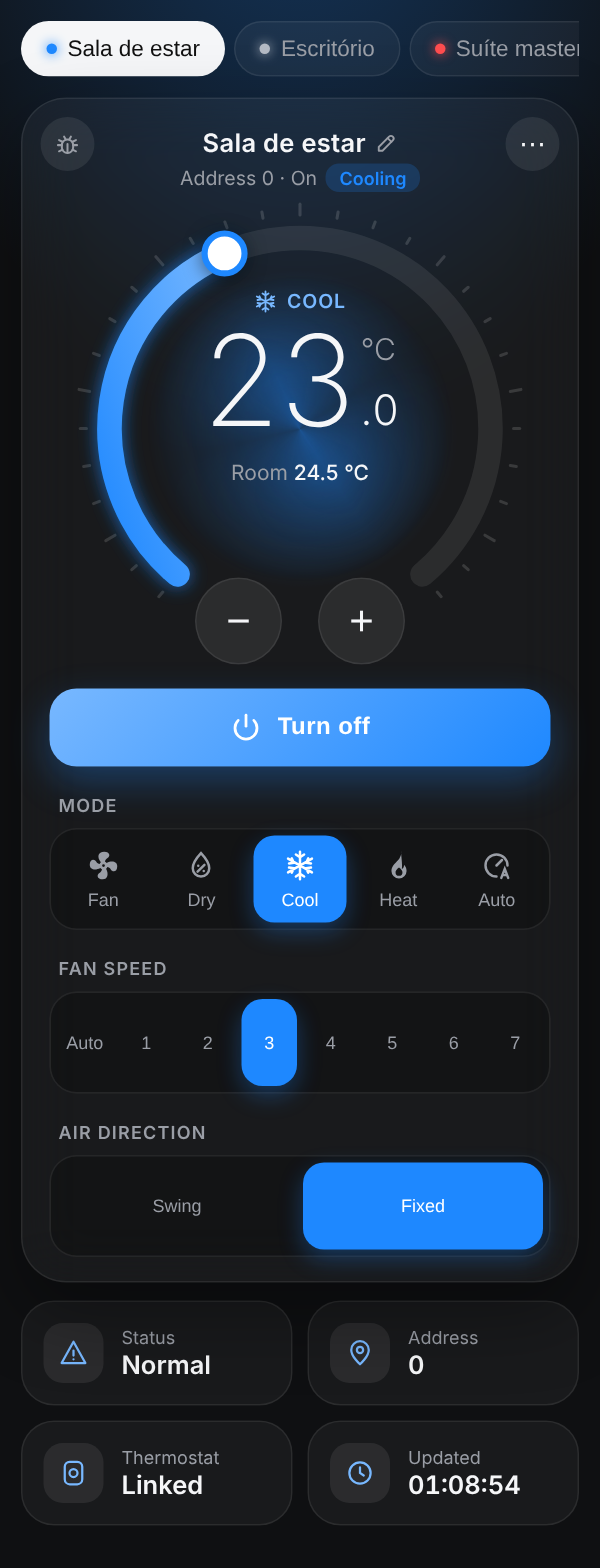
The driver shows up as an icon in the room where it was added, on touchscreens and in the Control4 app, at home and away. Tapping the icon opens the climate screen with the indoor units of the system.
Interface elements
| Element | Description |
|---|---|
| Indoor unit tabs | One tab per indoor unit shown on the screen. The dot takes the mode color when the indoor unit is on and turns gray when it is off. With more than four indoor units, the list button at the start opens all of them with temperature and mode for a quick pick. |
| Dial | Drag the dial or use − and + for the setpoint, in 1 °C steps. When dragging, the command is sent when you release the dial. The center shows the mode and the room temperature. The arc color follows the mode: blue Cool, red Heat, green Auto, cyan Dry and light gray Fan. In Fan there is no setpoint: the dial shows the room temperature. |
| Current operation | Next to the address the screen shows what the indoor unit is doing (Cooling or Heating) and the center of the dial gets an animated glow in that color. |
| Turn on / Turn off | Turns the indoor unit on in the last mode, or off. |
| Mode, Fan speed, Air direction | Fan speed shows Auto and speeds 1 (minimum) to 7 (maximum). Air direction: Swing or Fixed. |
| Data tiles | Status, indoor unit address, whether a thermostat is bound to it and the time of the last reading. |
| Rename (pencil) | The pencil next to the name renames it on the screen. Confirm with Enter or by tapping outside the field. Leave it empty to go back to the thermostat name. |
| Menu ⋯ | Hides the indoor unit, lists the hidden ones to show them again, All off (tap twice to confirm), Refresh, Discover indoor units, the Setup page and the language (Português / English, saved on the device). |
| Debug (ladybug) | Shows below the panel the log of the screen talking to the driver, with Copy and Clear buttons, to send to support. |
| Warnings | A bar at the top warns when the serial port is not connected or the license is invalid. |
Setup page
Opened from the ⋯ menu or from the Setup Page URL property in a browser on the same network. It lists all indoor units with address, name, thermostat and state, and lets you rename them and choose which ones stay on the screen. The choices are saved in the driver and apply to every device.
Indoor units per room
When the driver shows up in several Navigator rooms, you can choose, for each room, which indoor units show up in the interface and which one opens first. This is in the setup page, in the Interface rooms box.
- A room is added to the box automatically the first time the interface is opened in it. You can also add one from the project room list.
- Check the indoor units that should show up and pick the default. A room without settings shows all of them.
- If the room is not identified (for example, the interface opened from its direct address), all of them show up.
Updating existing projects
The Navigator interface uses a new kind of icon that Control4 only creates when the driver is added. Just updating the driver keeps everything working as before, but without the interface icon. To get the interface in an existing project:
- Write down which Unit N connection each thermostat is bound to.
- Remove the old ZoomDH – Midea VRF Controller driver from the project. The thermostats stay in the project, with their programming.
- Add the new driver, bind the serial port and enter the License Key.
- When the indoor units show up, bind each thermostat again to its Unit N connection.
The license key stays the same.
Properties
| Property | Description |
|---|---|
| License Key | Driver license key. |
| License Status | License status and update information. |
| Control4 MAC Address | Controller MAC, used for licensing. |
| Driver Name / Driver Version | Name and version of the installed driver. |
| Log Level | Log detail level (0=Alert … 5=Trace). |
| Log Mode | Log destination: Off / Print / Log / Print and Log. |
| Driver Information | Driver status messages. |
| Connection Status | Serial port connection status. |
| Web Page Port | Interface port on the controller (default 8102). Each driver with an interface needs a different port; change it if another driver already uses 8102. |
| Web UI URL | Interface address, with the access key. Filled in by the driver. |
| Setup Page URL | Setup page address, to open in a browser on the same network. Filled in by the driver. |
Actions
| Action | Description |
|---|---|
| All Off | Turns off every indoor unit shown in the interface. Also available as a programming command. |
| Scan Units | Searches the indoor units of the system and creates the missing connections. |
| List Units | Lists the indoor units found in the log. |
| Change Unit Name | Renames the connection of an indoor unit. |
| Delete Unit | Removes an indoor unit from the driver. |
| Resend Web URL | Sends the interface address to the Navigator icon again. Use it if the icon opens a blank screen. |
| New Web Key | Changes the interface access key. Old addresses stop working. |
Connections
| Connection | Use |
|---|---|
| Serial RS-232 | Controller serial port, connected to the bus through the RS-232/RS-485 converter (4,800 bps, 8 bits, no parity, 1 stop bit). |
| Unit N | One connection per indoor unit found, to bind the ZoomDH Universal HVAC Indoor Unit thermostat. |
Troubleshooting
- The interface opens blank or with "Chave invalida": run the Resend Web URL action and close and reopen the app. If another driver uses the same port, change Web Page Port.
- The interface icon does not show up in an existing project: see Updating existing projects.
- No indoor units found: check the X/Y/E wiring, the converter power supply and that the indoor units are addressed. Then run Scan Units.
- An indoor unit shows "Waiting for status": the driver has not received its state yet. Check the bus wiring and use Refresh in the ⋯ menu.
- License deactivated right after entering the key: the controller needs internet access.
Licensing
- Trial period included; remaining time shown in License Status.
- After buying a license, enter the key in License Key. The status changes to Activated.
- The controller needs internet access for activation and periodic checks.
- Licenses: drivers@zoomdigitalhome.com.br
What the license controls
| Operation | Trial active or valid license | Trial expired |
|---|---|---|
| Serial port connection | OK | OK |
| Opening the Navigator interface | OK | OK |
| Commands to the indoor units (thermostats and interface) | OK | Blocked |
| Indoor unit state and temperature reading | OK | Blocked |
| All off | OK | Blocked |
Support and Updates
- Website: www.zoomdigitalhome.com.br
- Support: drivers@zoomdigitalhome.com.br
Release Notes
| Version | Date | Description |
|---|---|---|
| 20261023 | 10/23/2026 | Navigator interface with the look of the ZoomDH air conditioner drivers: temperature dial, indoor unit tabs, animated current operation, menu with show/hide, rename, All off and setup page. Per room choice of which indoor units show up and which one opens first. New icon with the VRF system and the Midea logo. New Web Page Port, Web UI URL and Setup Page URL properties and All Off, Resend Web URL and New Web Key actions. Licensing library update. New documentation. Requires OS 3.3. |
| 20260417 | 04/17/2026 | Fixed status reading with older and newer protocol versions. |
| 20260223 | 02/23/2026 | Fixed the setpoint decimal separator. |
| 20260130 | 01/30/2026 | Adjusted to the new firmware version. |
| 20250318 | 03/18/2025 | Fixed the mode when changed by the Midea remote control. |
| 20250220 | 02/20/2025 | Minor fixes. |
| 20240919 | 09/19/2024 | Initial version. |