Integrates Tuya Wi-Fi thermostats of any brand (underfloor heating, boilers, fan coils and similar), the ones set up in the Smart Life or Tuya Smart apps, with Control4. Each thermostat gets a ZoomDH – Universal Thermostat, created, bound and named automatically.
No Tuya IoT Platform sign-up: the Smart Life account signs in with a QR code, no password and no Access ID/Secret.
No device limit: works with as many thermostats as the account has.
Local control: commands and status go straight from the controller to the thermostat. After setup it keeps working without internet.
Account as backup: a thermostat that is not found on the network, or stops answering on it, is controlled through the Smart Life account until it comes back.
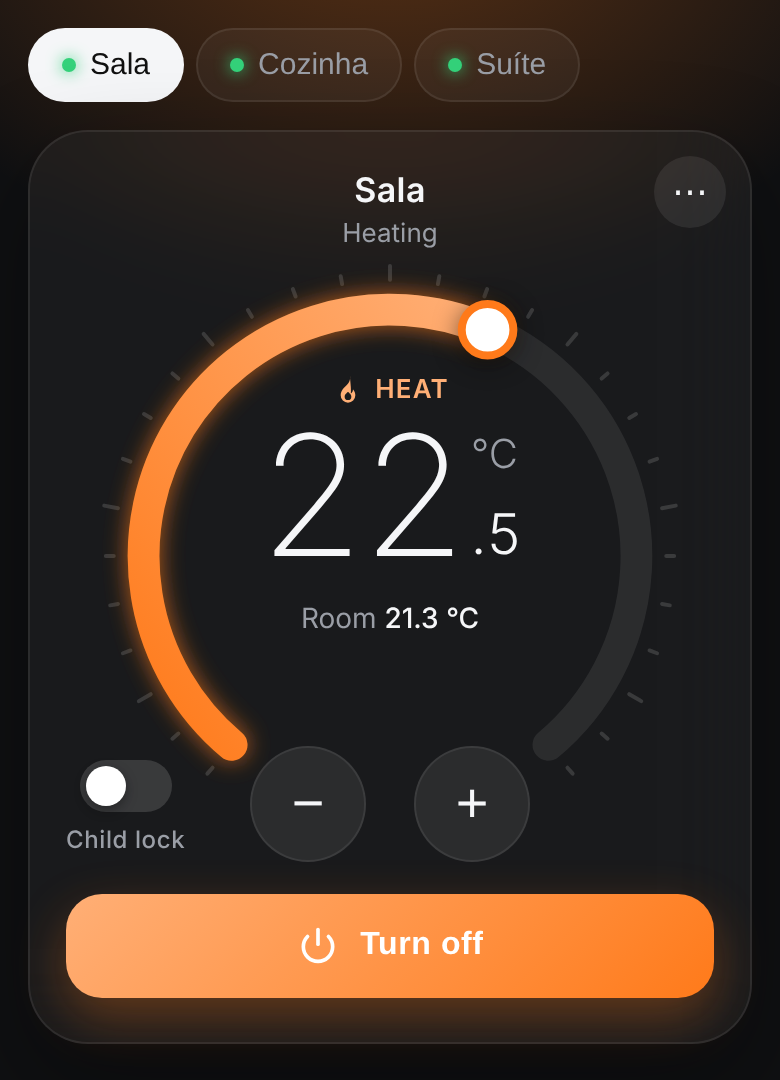
Thermostat in Navigator: power, setpoint (in half degrees on models that support it), room temperature and heating or idle indication. Fan coil models also show modes and fan speed.
WebView interface in Navigator with all thermostats and the child lock, on models that have it.
Changes made on the thermostat itself or in the app show up in Control4.
Prerequisites
Thermostats already set up in the Smart Life or Tuya Smart app and connected to the customer's Wi-Fi. If the brand has its own app built on Tuya, add the thermostat to Smart Life too.
Access to the customer's Smart Life account (the phone app, to scan the QR) during the first setup.
Thermostats and controller on the same network. Reserving each thermostat's IP on the router is recommended.
Controller with internet access during the first setup (and when a thermostat is set up again in the app).
ZoomDH_Universal_Thermostat.c4z installed in Composer (the gateway adds it to the project).
ZoomDH license key (without a key the driver runs as a 30-day trial).
Installation
Add the ZoomDH – Tuya Thermostat Wi-Fi Gateway driver to the project, in the room where the thermostats should be created.
Open the Setup Page URL address in a browser on the customer's network and connect the Smart Life account (see Smart Life account).
As soon as the account connects, the driver brings in the account's thermostats and looks for each one on the network (takes about 15 seconds).
For each thermostat, the gateway creates a Universal Thermostat, binds it to the HVAC Thermostats connection and picks the device.
Move each thermostat to the right room. To change the names, use Rename on the setup page.
Refresh the Navigators.
To add a thermostat by hand: add the Universal Thermostat, bind its HVAC Gateway connection to the gateway's HVAC Thermostats and pick the device in the Device property.
Smart Life account
In the customer's Smart Life (or Tuya Smart) app, open Me › gear (Settings) › Account and Security and copy the User Code.
On the setup page, paste the User Code and tap Create QR to sign in.
In the app, tap the scanner (top right of the home screen), scan the QR and confirm. The page shows Connected in a few seconds.
The QR is valid for a few minutes. If it expires, create another one.
The account fetches new thermostats and the key of a thermostat set up again in the app, and controls the ones not reachable over the network.
To switch accounts, use Disconnect account on the page or the Disconnect Tuya Account action. Thermostats found on the network keep working.
Thermostat in Navigator
Heating thermostats (underfloor, boiler): Off and Heat modes. The state shows heating while the thermostat is calling for heat and idle once it reaches the setpoint.
Half-degree setpoint on models that support it (the step comes from the thermostat itself).
Fan coil: the modes (cool, heat, fan) and fan speeds the model has.
The thermostat's own schedule (auto, manual, holiday modes) stays as set in the app.
WebView interface
The driver shows up in Navigator as a button that opens the thermostats interface: one tab per thermostat, setpoint dial, power, room temperature, heating indication and the child lock on models that have it. The interface also opens away from home, through the Control4 app.
The default language comes from the Language property. It can be changed in the interface's ⋯ menu, and the choice is saved on that device.
When the driver shows up in several Navigator rooms, the setup page lets you choose, in the Interface rooms box, which thermostats show up in each room and which one opens first.
Coming from Tuya Cloud Hub
This driver replaces the Tuya Cloud Hub + Tuya Thermostat pair for thermostats.
Add the Tuya Thermostat Wi-Fi Gateway and connect the Smart Life account (the same account that was linked to the Cloud Project).
Run Discover Devices: the thermostats get new Universal Thermostats, with the app names.
Redo the references to the old thermostats in programming and scenes, then remove the Tuya Cloud Hub and the Tuya Thermostat drivers.
The Tuya IoT Platform Cloud Project is no longer needed.
Tuya locks stay on the Tuya Cloud Hub.
Properties
Property
Description
License Key
ZoomDH license key.
License Status / Driver Information
License or trial status.
Driver Name / Driver Version
Name and version of the installed driver.
Language
Default language of the WebView interface, the setup page and the Status (Português or English).
Log Level / Log Mode
Log level and destination.
Status
Account, search and last read status.
Tuya User Code
Smart Life app User Code. Filled in by the setup page.
Tuya Account
Shows whether the Smart Life account is connected.
Poll Interval
Thermostat read interval, in seconds (3 to 300, default 10). Through the account, reads happen at most every 25 seconds.
Cloud Fallback
Yes (default): a thermostat without an IP on the network, or that stops answering on it, is controlled through the Smart Life account. No: local network only.
Auto Create Devices
Yes: creates and binds a Universal Thermostat for each new thermostat. No: only lists the thermostats; the Universal Thermostats are added by hand.
Discovered Devices
The account's thermostats and the IP of each one.
Device IP Addresses
Optional. IPs of thermostats the search does not find on its own, separated by commas.
Web Page Port
Interface and setup page port on the local network. 0 (default): automatic, with no conflict with other drivers. The right addresses show up in Web UI URL and Setup Page URL.
Web UI URL / Setup Page URL
Interface and setup addresses, with the access key.
Actions
Action
Description
Discover Devices
Fetches the account's thermostats, looks for each one on the network and creates the missing Universal Thermostats.
Log Raw Status
For ZoomDH support (requires ZOOMDH Debug).
Resend Web URL
Sends the interface address to the Control4 app again. Use it if the WebView keeps loading after adding or updating the driver (and close and reopen the app).
New Web Key
Changes the access key of the setup addresses (the old addresses stop working).
Forget Devices
Clears the thermostat list. The Universal Thermostats stay in the project and go back to the same thermostat on the next search.
Disconnect Tuya Account
Disconnects the Smart Life account. Thermostats found on the network keep working.
Connections
Connection
Use
HVAC Thermostats
Single connection for all thermostats: bind each ZoomDH – Universal Thermostat's HVAC Gateway connection to it.
Troubleshooting
The QR does not show up or there is a User Code error: check the User Code in the app (Me › Settings › Account and Security) and that the controller has internet.
Account connected but no thermostats: the thermostat must be in the account that scanned the QR. If it is in another brand app, add it to Smart Life.
Thermostat without IP: check it is on the same network as the controller. If it is on another network, enter its IP in Device IP Addresses. Meanwhile, with Cloud Fallback = Yes, it is controlled through the account.
Thermostat stopped answering after being set up again in the app: the access key changes when the device is paired again. With the account connected the driver fetches the new key on its own; without it, connect again and run Discover Devices.
Thermostat offline after working: the IP may have changed. The driver searches again on its own; to avoid it, reserve the IP on the router.
The setpoint goes back to the previous value: check that the thermostat's own schedule (auto mode in the app) is not changing the setpoint.
Commands ignored and license warning in the interface: the trial ended or the key is invalid. Check License Key and License Status.
WebView loading in the app: run Resend Web URL and close and reopen the app.
Licensing
ZoomDH license per controller, entered in License Key. Without a key the driver runs as a 30-day trial.
Once a day, also during the trial, the driver reports technical data of the installation to the license server (controller model and version, driver version, project name and license state). No personal data is sent. When a new driver version is available, it shows in License Status with the link to the driver page on the website.
Without a valid license
Effect
Periodic reading
Stopped: the thermostats get no new status.
Commands (thermostats and WebView interface)
Ignored. The interface shows the license warning.
Account, thermostat search and setup page
Keep working.
The Universal Thermostats have no license of their own: they use the gateway's.
First release, replacing Tuya Cloud Hub and Tuya Thermostat: Smart Life account sign-in by QR code, no Tuya IoT Platform sign-up and no device limit, local control with the account as backup, automatic creation of the ZoomDH Universal Thermostats, half-degree setpoint, heating indication, WebView interface and driver messages in Português/English. Reports the installation's technical data to the license server once a day, which speeds up support. It also shows in License Status when a new driver version is available.